
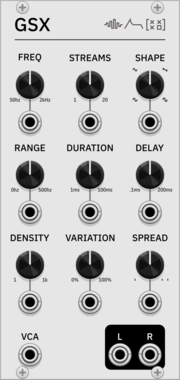
SignalFunctionSet GSX
Granular synthesis module based on Barry Truax's GSX system (1985-86), with real-time control over temporal, spectral, and spatial parameters
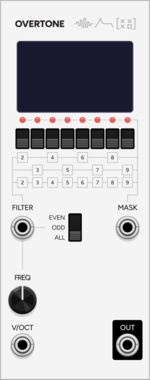
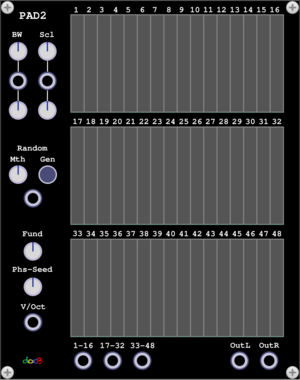
SignalFunctionSet Overtone
Additive synthesis VCO with 8 individually-toggled harmonics, even/odd filter, binary mask CV, and waveform display

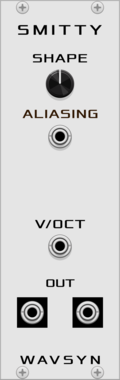
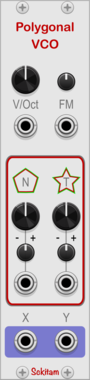
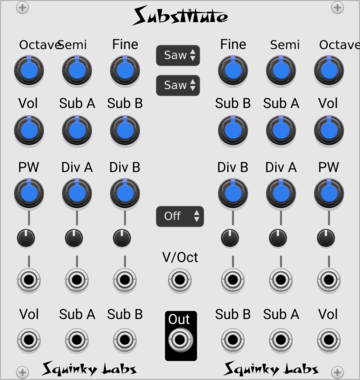
WavsynModular Smitty
VCO with dual sine-like outputs plus a shape control for adding harmonics and aliasing
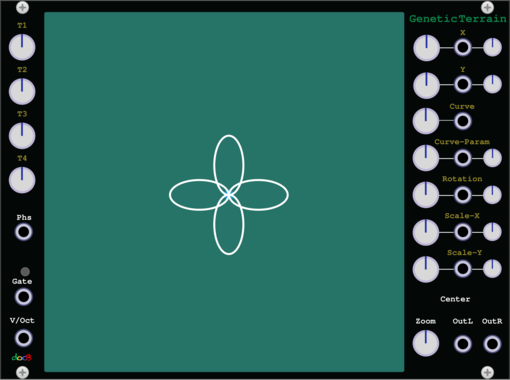
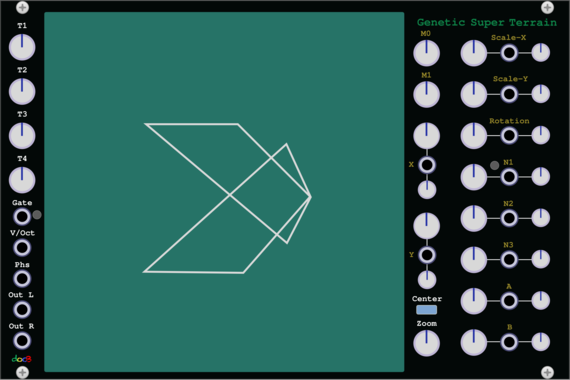
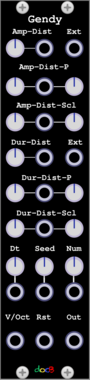






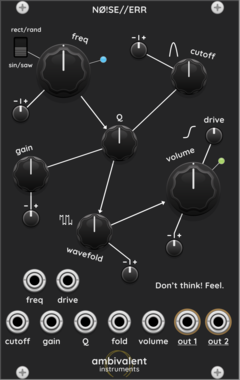
Ambivalent Instruments NØ!SE//ERR
A dual-output noise oscillator that travels seamlessly between calm and agitation, harmony and dissonance.



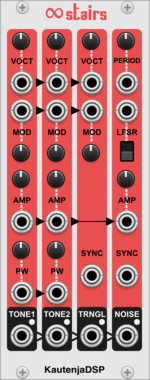
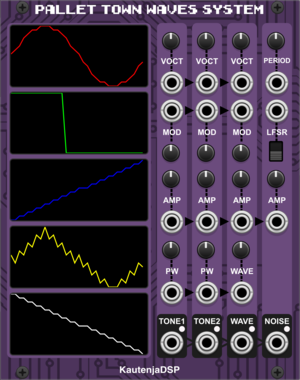
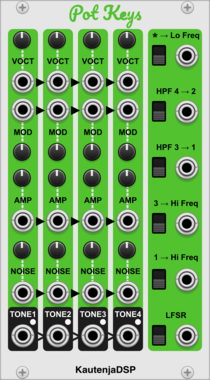
KautenjaDSP Infinite Stairs
An emulation of the Ricoh 2A03 chip from the Nintendo Entertainment System (NES).
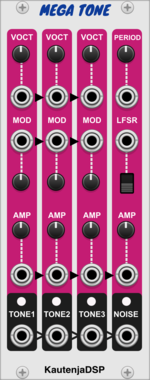
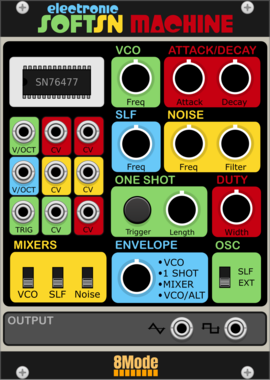
KautenjaDSP Mega Tone
An emulation of the Texas Instruments SN76489 chip from the Sega Master System, Sega Mega Drive, and Sega Genesis.
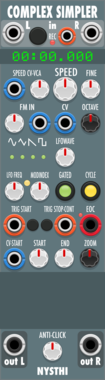
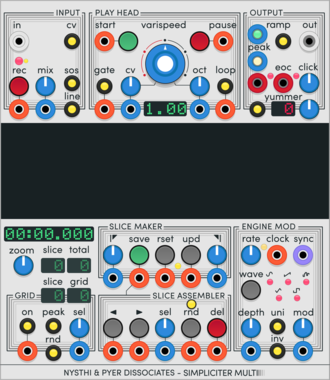
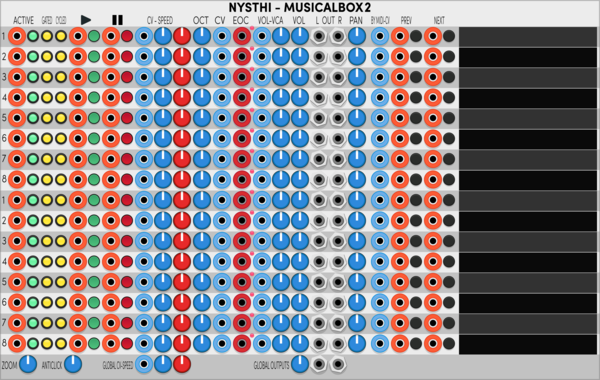
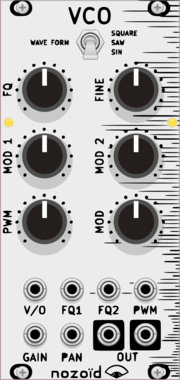
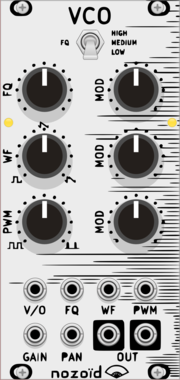
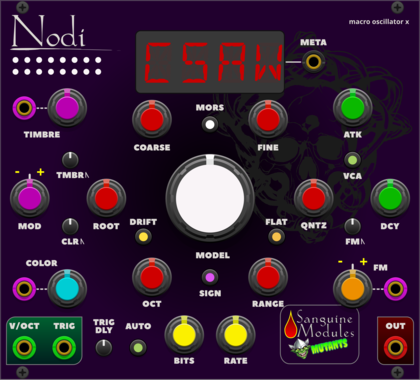
Sanguine Mutants Nodi
Adaptable, polyphonic macro oscillator based on Mutable Instruments' Braids
DigitalHardware cloneNoiseOscillatorPolyphonicSynth voiceWaveshaper
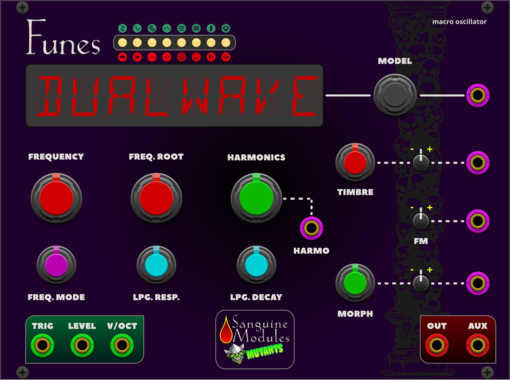
Sanguine Mutants Funes
Powerful, polyphonic macro oscillator based on Mutable Instruments' Plaits 1.2
DigitalDrumHardware cloneNoiseOscillatorPolyphonicSynth voice
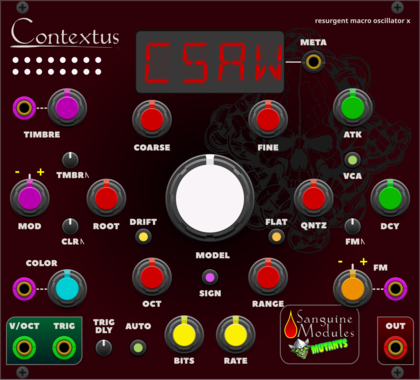
Sanguine Mutants Contextus
Multipurpose, polyphonic macro oscillator based on the Renaissance alternative firmware for Mutable Instruments' Braids
DigitalHardware cloneNoiseOscillatorPolyphonicSynth voiceWaveshaper
VCV Library Instructions
- Download and install VCV Rack.
- Register for a VCV account and log in using Rack’s “Library” menu.
- Add or purchase a module on the VCV Library.
- Open the “Library” menu in Rack, click “Update all” (if updates are needed), and restart Rack once downloaded.
- Right-click an empty rack space to launch Rack’s module browser to add a module to your patch.
All plugins on the VCV Library are available for Windows, Mac, and Linux.
The “major” version (i.e. MAJOR.MINOR.REVISION) must match between Rack and its plugins.
For example, Rack 2.* can only load 2.* plugins.
Missing or incorrect information in this database, such as a missing tag? Inform the plugin author(s) using the contact information on their plugin/module page.
Developers: see Adding your plugin to the VCV Library.
Notes
Purchasing plugins with the “VCV” brand supports the VCV Rack project. See VCV’s Mission Statement to learn how VCV Rack development is funded.
Prices are in US Dollars.
By purchasing a plugin on the VCV Library, you agree to VCV’s End User License Agreement and Refund Policy.
Contact VCV Support for customer support and questions about the VCV Library.