

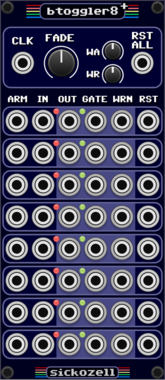
Sickozell bToggler8+
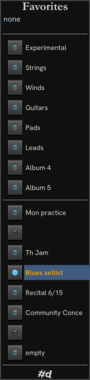
8 buffered toggle switch router, plus warnings to use with led midi controllers
VCV Library Instructions
- Download and install VCV Rack.
- Register for a VCV account and log in using Rack’s “Library” menu.
- Add or purchase a module on the VCV Library.
- Open the “Library” menu in Rack, click “Update all” (if updates are needed), and restart Rack once downloaded.
- Right-click an empty rack space to launch Rack’s module browser to add a module to your patch.
All plugins on the VCV Library are available for Windows, Mac, and Linux.
The “major” version (i.e. MAJOR.MINOR.REVISION) must match between Rack and its plugins.
For example, Rack 2.* can only load 2.* plugins.
Missing or incorrect information in this database, such as a missing tag? Inform the plugin author(s) using the contact information on their plugin/module page.
Developers: see Adding your plugin to the VCV Library.
Notes
Purchasing plugins with the “VCV” brand supports the VCV Rack project. See VCV’s Mission Statement to learn how VCV Rack development is funded.
Prices are in US Dollars.
By purchasing a plugin on the VCV Library, you agree to VCV’s End User License Agreement and Refund Policy.
Contact VCV Support for customer support and questions about the VCV Library.