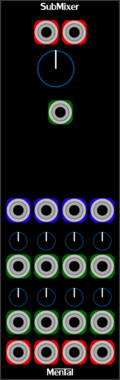





Strum's VCV Modules MentalSubMixer

Strum's VCV Modules MentalSubMixer

Simple 4 channel stereo mixer

Mixer

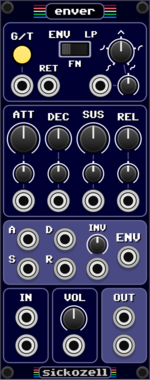
Sickozell enver

Sickozell enver

Envelope generator with stereo VCA

Envelope generatorVoltage-controlled amplifierPolyphonic

4ms Boost

4ms Boost

Stereo gain + distortion module

DynamicsUtilityEffectDistortion

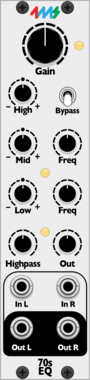
4ms 70sEQ

4ms 70sEQ

Neve 1073 inspired stereo EQ

UtilityEqualizerEqualizerEffect

docB JWS

docB JWS

Polyphonic stereo waveshaper using JONG attractor

WaveshaperPolyphonic

mscHack ASAF8

mscHack ASAF8

8 Channel Auto Stereo Audio Fader

Mixer

Glue the Giant Mini Bus Mixer

Glue the Giant Mini Bus Mixer

Mono mixer to three stereo buses

MixerPolyphonic

Mockba Modular FeidahS

Mockba Modular FeidahS

Simple stereo signal fader with VCA

AttenuatorVoltage-controlled amplifierPolyphonic

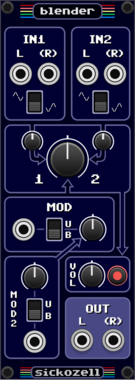
Sickozell blender

Sickozell blender

Stereo crossfade mixer with double modulation

MixerPolyphonic

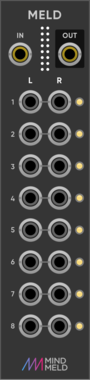
MindMeld Meld

MindMeld Meld

8-track stereo merge for MixMaster

PolyphonicUtility

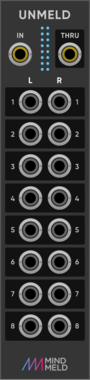
MindMeld Unmeld

MindMeld Unmeld

8-track stereo splitter for MixMaster

PolyphonicUtility

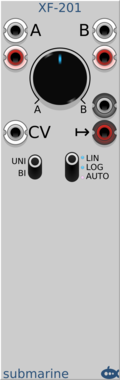
Submarine XF-201

Submarine XF-201

XF-201 Single Stereo Cross Fader

Mixer

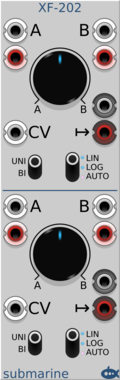
Submarine XF-202

Submarine XF-202

XF-202 Dual Stereo Cross Fader

MixerDual


VCV Library Instructions

  • Download and install VCV Rack.
  • Register for a VCV account and log in using Rack’s “Library” menu.
  • Add or purchase a module on the VCV Library.
  • Open the “Library” menu in Rack, click “Update all” (if updates are needed), and restart Rack once downloaded.
  • Right-click an empty rack space to launch Rack’s module browser to add a module to your patch.

All plugins on the VCV Library are available for Windows, Mac, and Linux. The “major” version (i.e. MAJOR.MINOR.REVISION) must match between Rack and its plugins. For example, Rack 2.* can only load 2.* plugins.

Missing or incorrect information in this database, such as a missing tag? Inform the plugin author(s) using the contact information on their plugin/module page.

Developers: see Adding your plugin to the VCV Library.

Notes

Purchasing plugins with the “VCV” brand supports the VCV Rack project. See VCV’s Mission Statement to learn how VCV Rack development is funded.

Prices are in US Dollars.

By purchasing a plugin on the VCV Library, you agree to VCV’s End User License Agreement and Refund Policy.

Contact VCV Support for customer support and questions about the VCV Library.